New

Discover professional insights and connect with industry leaders. Featured Profiles

Sales Panel

Overview

The Sales Panel is a powerful prospect discovery tool that helps you identify and connect with the right leads using advanced filters and AI-powered search.

Use natural language to describe your ideal prospects, and it will surface the best-matching professionals and companies.

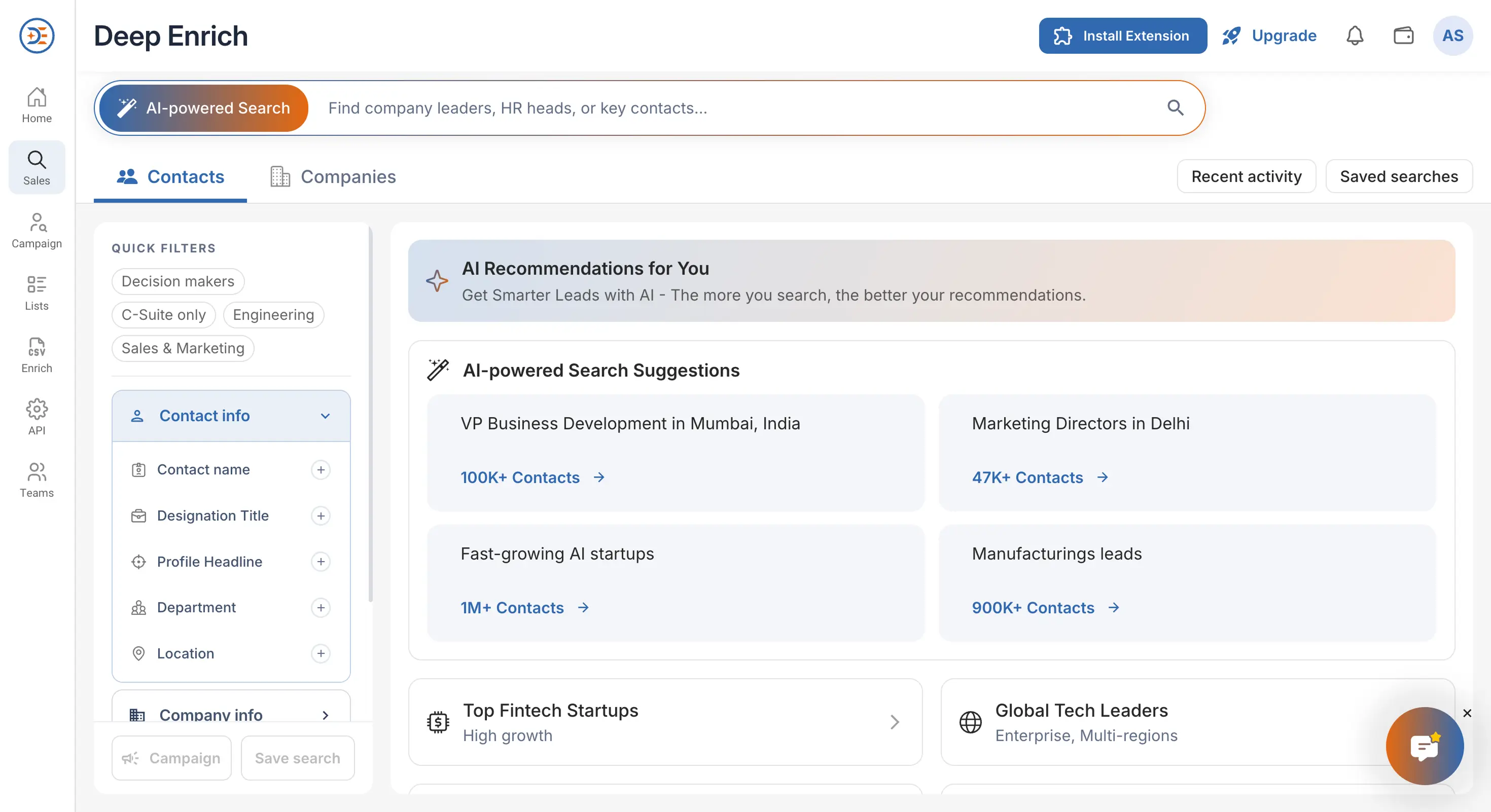
Dashboard Overview
How It Works
  • Log in to Your Deep Enrich Account
    1. After signing in to your Deep Enrich account, you’ll land on the dashboard.
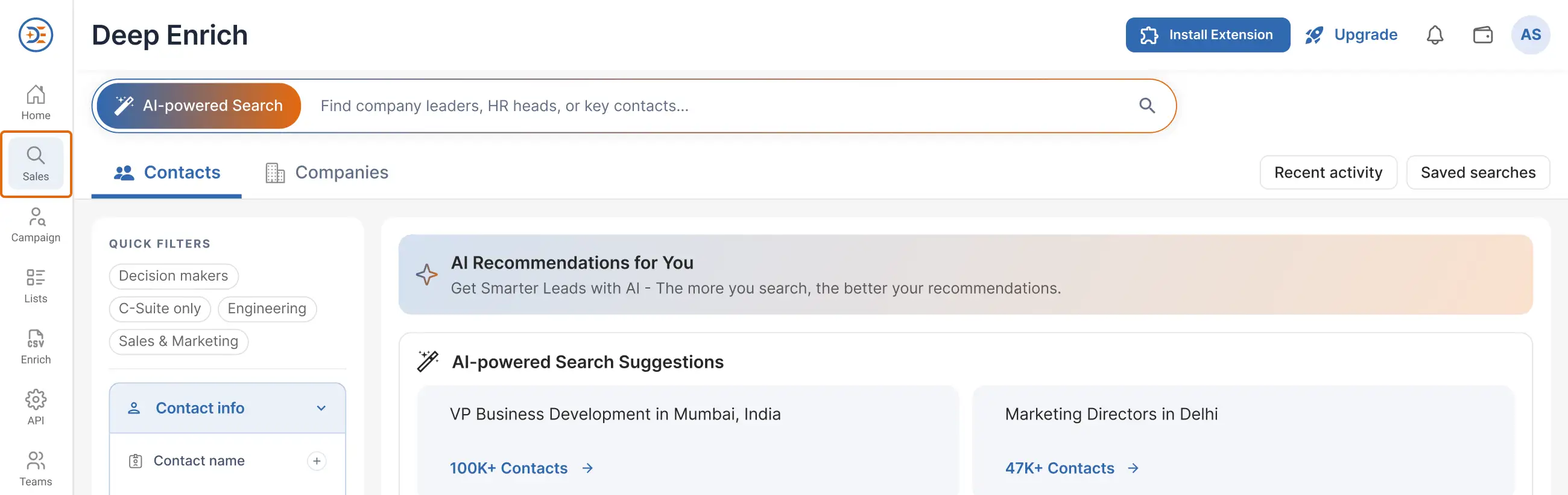
    2. Click on the Sales tab in the left panel.
    Left Menu Nav
  • AI-Powered Smart Search
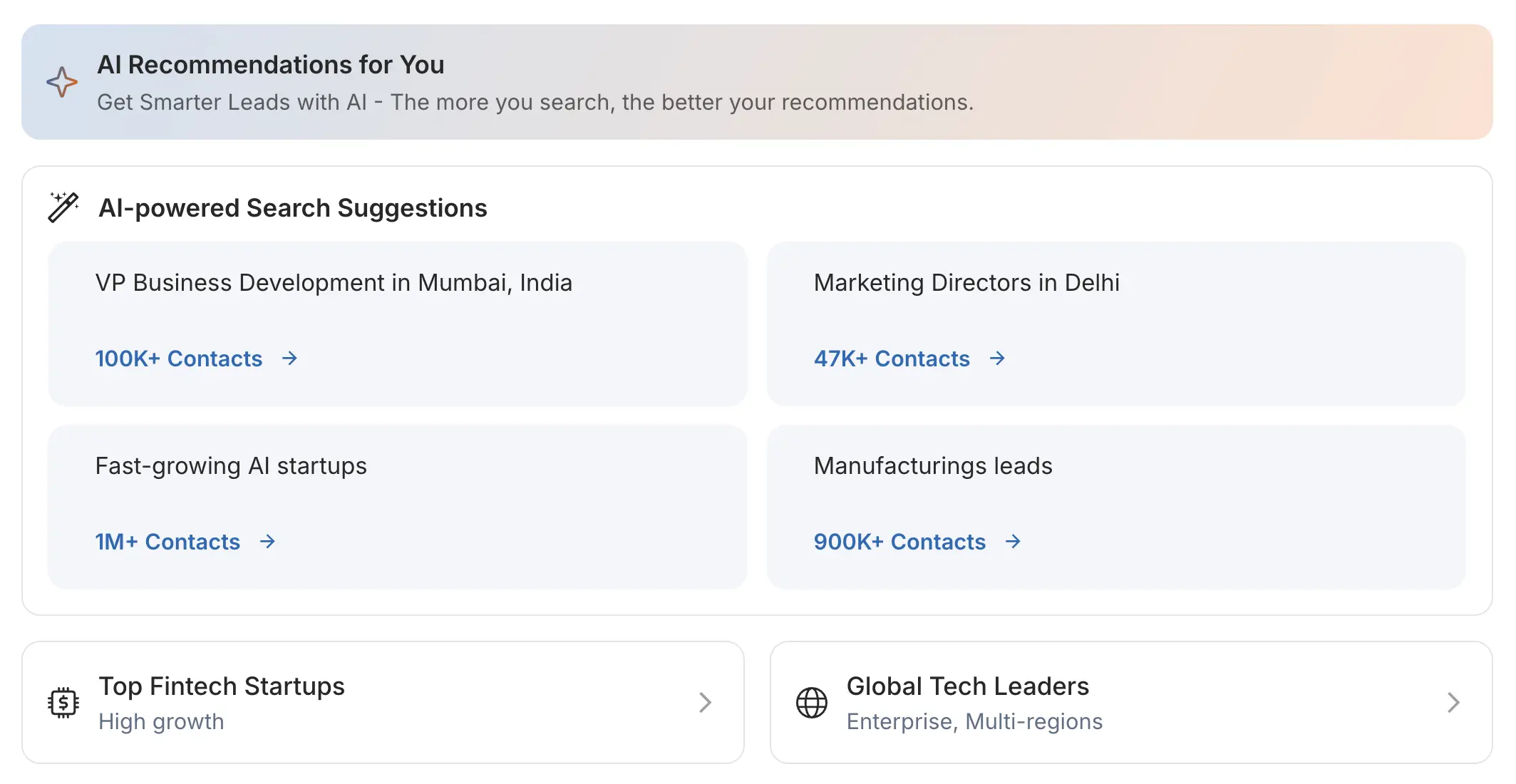
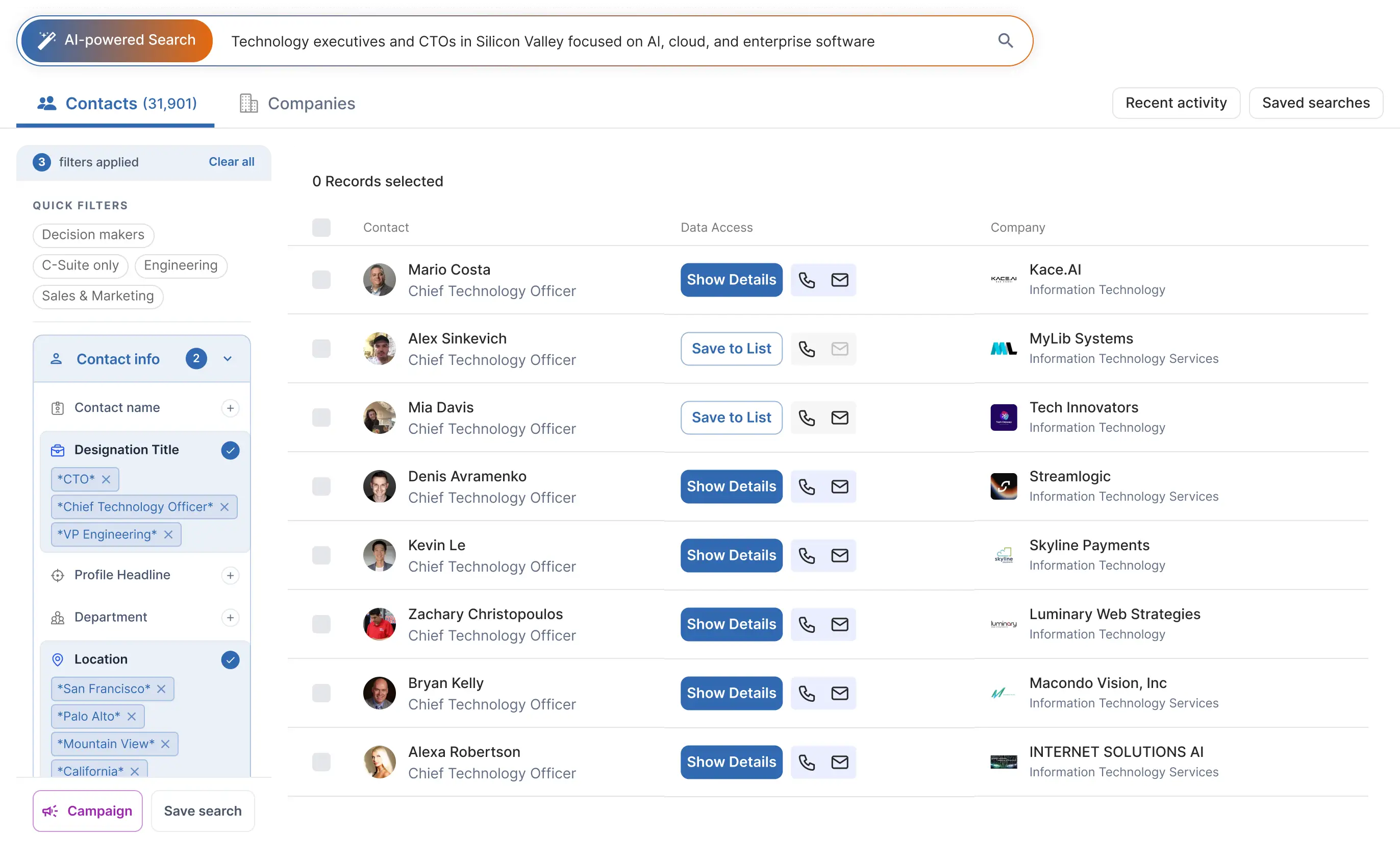
    1. Type your requirement in everyday language. Example: “MD in Chennai with 1M above turnover”.
    2. No need for exact filters or keywords - AI interprets the meaning automatically.
    Search Suggesation
  • How AI Interprets Your Query
    1. The system instantly performs:
      1. Semantic analysis to understand roles, locations, follower counts, industries, and context.
      2. Intent and emphasis detection, such as seniority, region-specific targeting, or high-reach profiles.
    2. This interpretation is converted into precise, actionable search logic automatically.
    3. AI converts your query into accurate business-search logic instantly.
  • AI Recommendations Panel
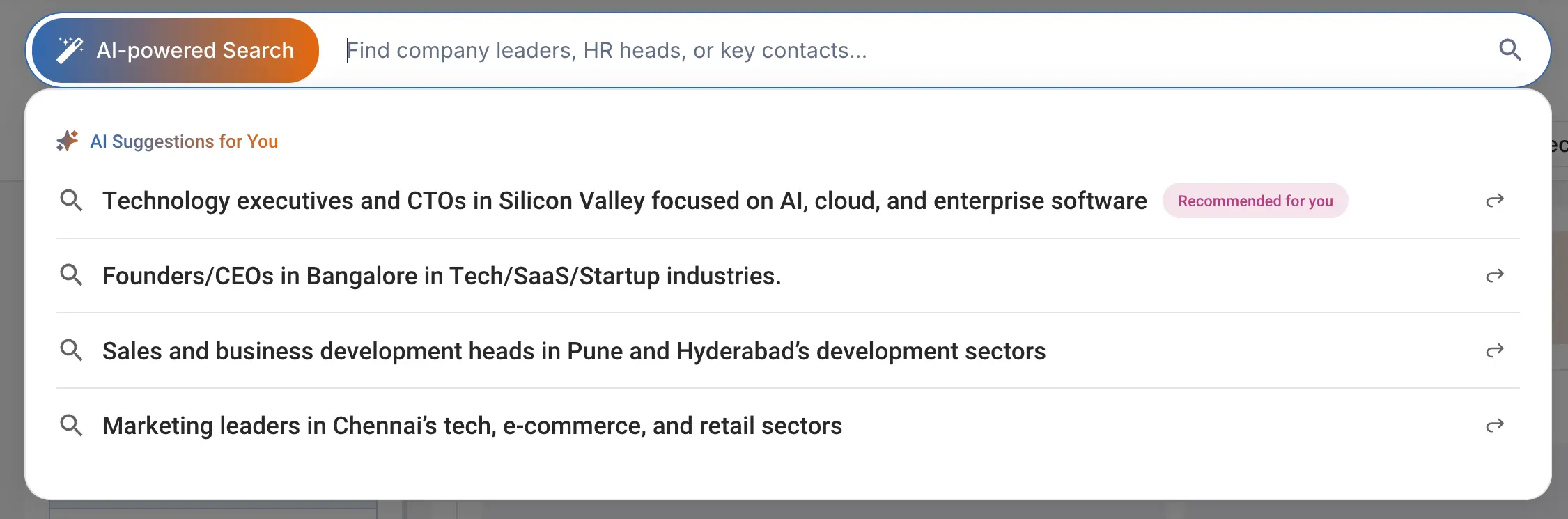
    1. AI Suggestions Panel Appears: Below the search bar, you see AI Suggestions for You as per your query.
      AI Recommendations
    2. When you choose a suggestion and press Enter. The system automatically applies relevant filters. Like
      1. Designation Title (e.g., Managing Director)
      2. Location (e.g., Chennai)
      3. Revenue (e.g., >1m)
        Filters Applied
    3. These appear in the Filters panel on the left side of the screen. You can further refine the search by adding more filters from the left sidebar, such as Company Name, Employee Count, Year Founded, and Skill.
    4. Every new filter sharpens the results in real time.
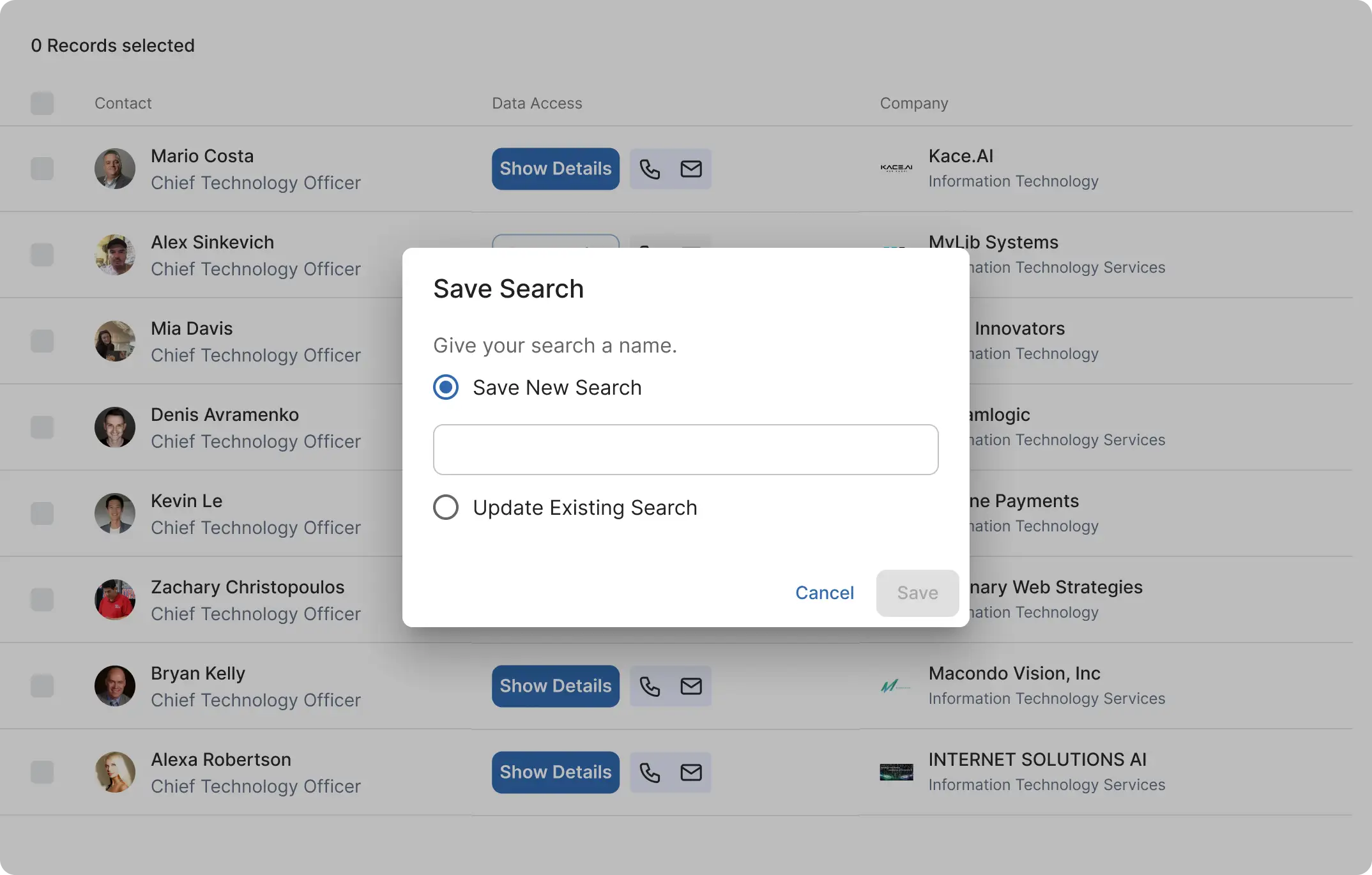
    5. You can save any applied filter set by clicking the “Save Search” option next to the Filters section.
      Filters Searched
    6. Create a new search list or add the results to an existing one.
      Save Search
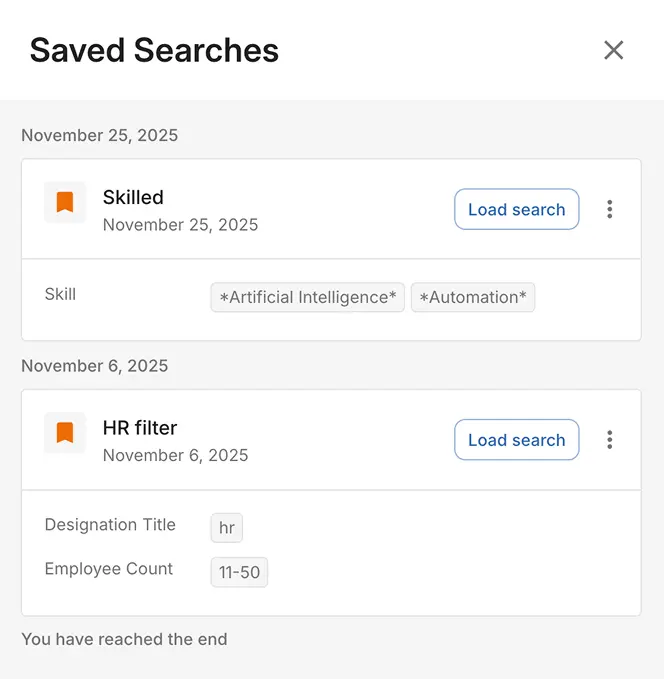
    7. Once saved, the same filter combination can be quickly loaded from the “Saved Searches” menu at the top right, so you don’t need to reapply filters from scratch.
      Saved Searches
    8. Use the Campaign button to create a campaign from the applied Sales Panel filters, then review or edit them before launch.
  • Viewing Your Results
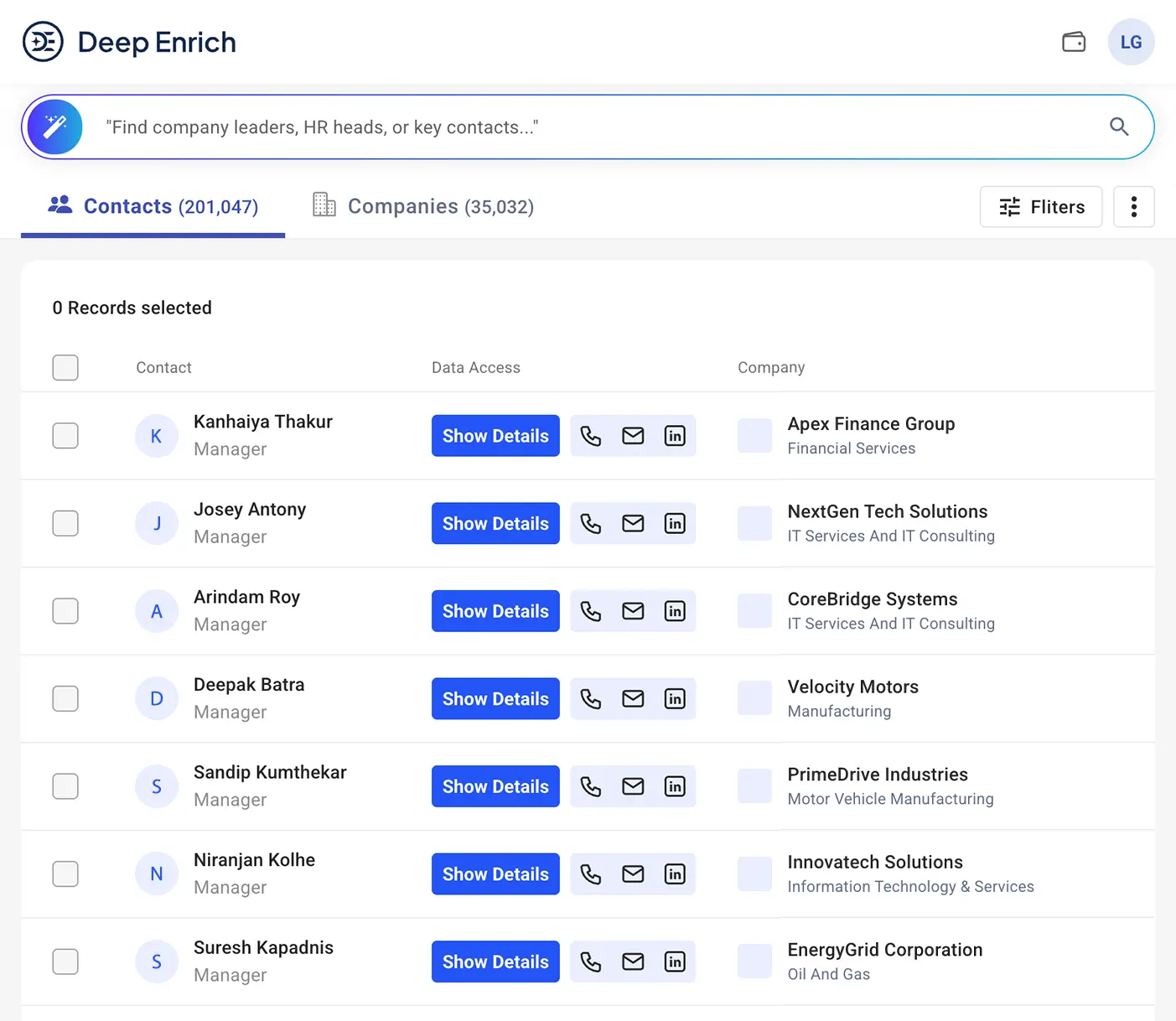
    1. Results load instantly in the Main center section.
    2. Each profile card displays:
      1. Name and role
      2. Contact options (email, phone, LinkedIn)
      3. Company details
        Viewing Your Results
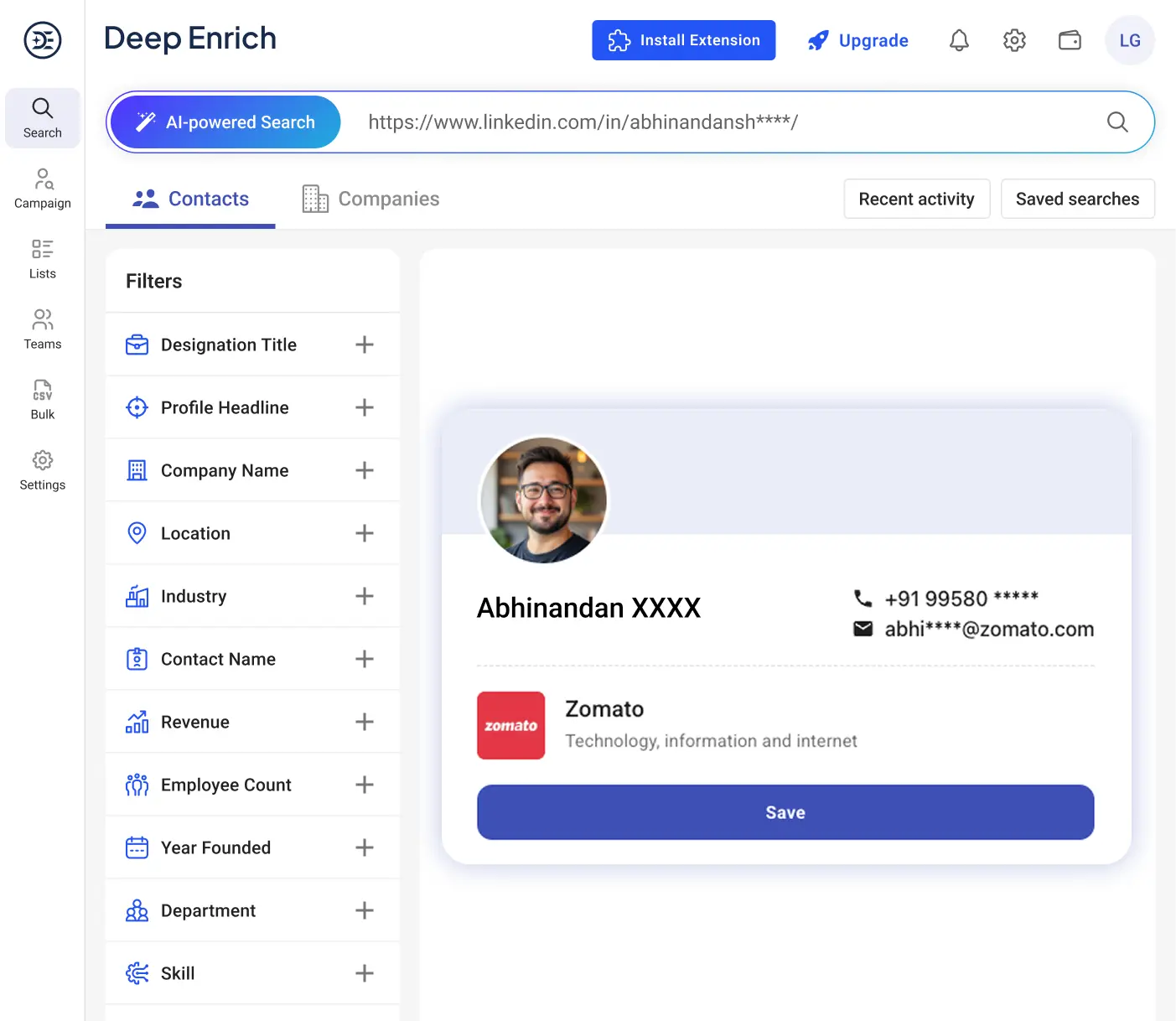
    3. Paste a LinkedIn profile URL into the search bar and click the Search icon to view prospects' complete profile details.
  • Credit Usage
    1. 5 credits – Contact Verified
    2. 1 credit – Email Verified
      Linkedin Profile
    3. If the contact has already been purchased earlier, no credits are deducted, and the details are shown instantly.
    4. If the process takes time, you’ll receive a notification that the system is still searching. Once found, a notification email will be sent to the registered email.
Select Data Categories

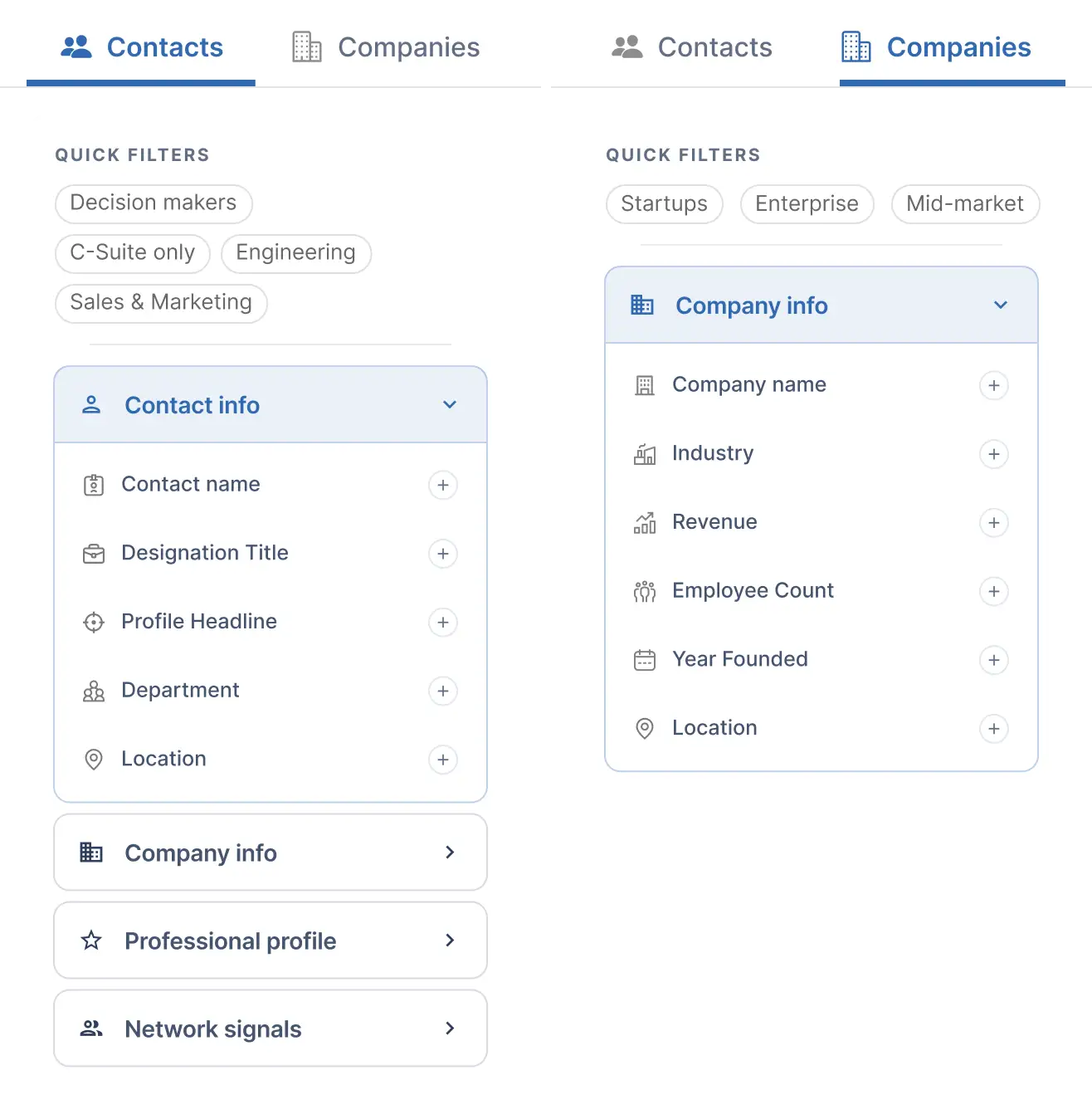
Choose between the Contacts Tab and the Companies Tab to filter by individual profiles or businesses.

Quick Filters (optional)

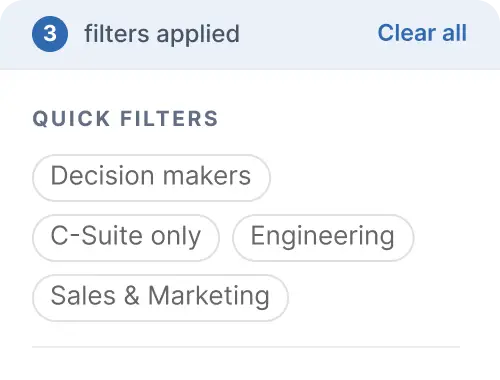
Quick Filters help you instantly start with predefined audience groups without manually selecting multiple criteria.

What you need to do: Choose one or more audience segments that best match the type of prospects you're looking for. You can select multiple Quick Filters at once, then refine the results further with additional filters.

Quick Filters
Available Filters Include:
Data Categories
  • Contact Name - Search directly for specific individuals.
  • Designation Title - Target roles like CEO, Manager, or Analyst.
  • Profile Headline - Find profiles whose headlines contain relevant keywords.
  • Department - Narrow results by departments, such as Marketing or Sales.
  • Company Name - Search by specific company names to narrow results.
  • Location - Focus on contacts or companies within specific regions.
  • Industry - Filter based on the business sector, e.g., IT, Finance, or Healthcare.
  • Employee Count - Sort companies by team size to match your target market.
  • Revenue - Focus on businesses within specific revenue ranges.
  • Year Founded - Target companies based on their establishment date.
  • Skills - Search profiles with specific expertise.
  • Experience - Filter by years of professional experience.
  • Followers & Connections - Identify profiles with larger networks for greater reach.

Note- Combine multiple filters to get the most precise and relevant search results.

Accessing Contact Details and Organizing Your Prospects

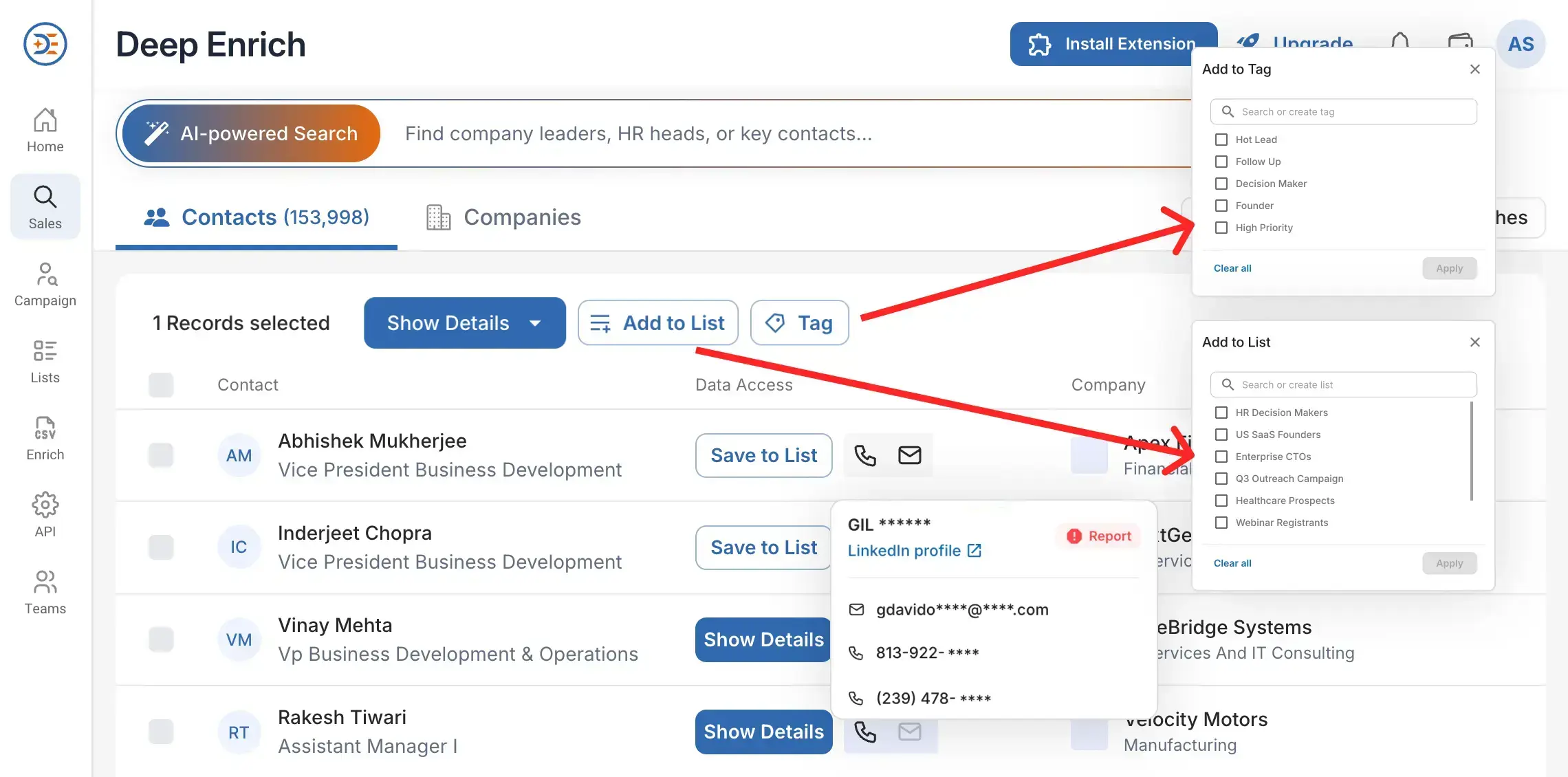
When you click on a desired result, you can unlock information such as an email ID, phone number, and LinkedIn profile.

Organize Contacts Efficiently:
Organize Contacts
  • View Full Reports – Access comprehensive profiles, including job titles, company details, and more.
  • Multi-Select Contacts – Select multiple contacts at once to save time.
  • Add to Lists – Group purchased contacts into predefined or custom lists for easy tracking and organization.
  • Tag Contacts – Use predefined tags or create custom tags to categorize and manage contacts effectively.
Tracker

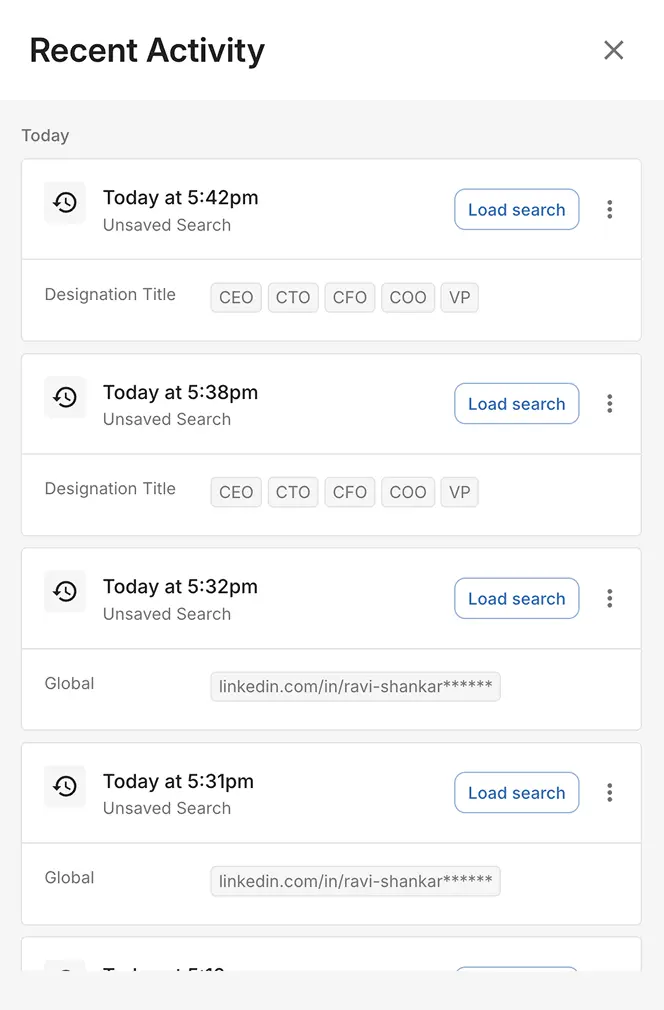
In the top right corner, there are two options that allow you to conveniently view Recent Activities and Saved Searches - all in one place.

  • Recent Activity

    The Recent Activity tab shows your last 30 days of activity, including all searches, enriched profiles, and data lookups. Each entry displays the search type, filters used, and timestamp, allowing you to reload any past search instantly. This makes it simple to pick up where you left off - without needing to reapply filters.

    Recent Activity
  • Saved Searches

    You can save any search filter for future use. Saved filters help you quickly run the same search again with just one click. Simply click “Load Search” to reuse your saved search instantly.

Explore our other collections

Deep Enrich Extension
DeepEnrich Campaign Simplify and automate your leads discovery and buying process.
View all
Team Management
Team Management Seamlessly manage your team and collaborate efficiently.
View all
Email & Phone Finder
My Account Easily access and manage your account details.
View all
Deep Enrich Extension
DeepEnrich Extension Take a deep tour of our Google Chrome extension.
View all
Email & Phone Finder
Dashboard Stay updated with your account performance and recent activity.
Read more
Sales Panel
Sales Panel Quickly access and manage your prospects.
Read more
Bulk Enrichment
Bulk Enrichment Enrich multiple profiles or company records at once
Read more